Privacy-first cybersecurity tool
Free Secure Password Generator
Generate strong random passwords, memorable passphrases, and numeric PINs instantly. No login required. We do not store your input.
Passphrases are easier to read and remember. Use more words for important accounts.
Generate a result to see what it means and how to use it safely.
- Use a different password for every important account.
- Use a password manager to save long, unique passwords.
- Turn on MFA or passkeys wherever available.
How to use this Password Generator
- Choose Password, Passphrase, or PIN based on the account or device you are securing.
- Keep the default strong settings, or adjust length and character options if a website has specific rules.
- Click Generate Secure Result, copy it, and save it in a trusted password manager.
- Do not reuse the same password on multiple accounts. Use passkeys or MFA when available.
What the result means
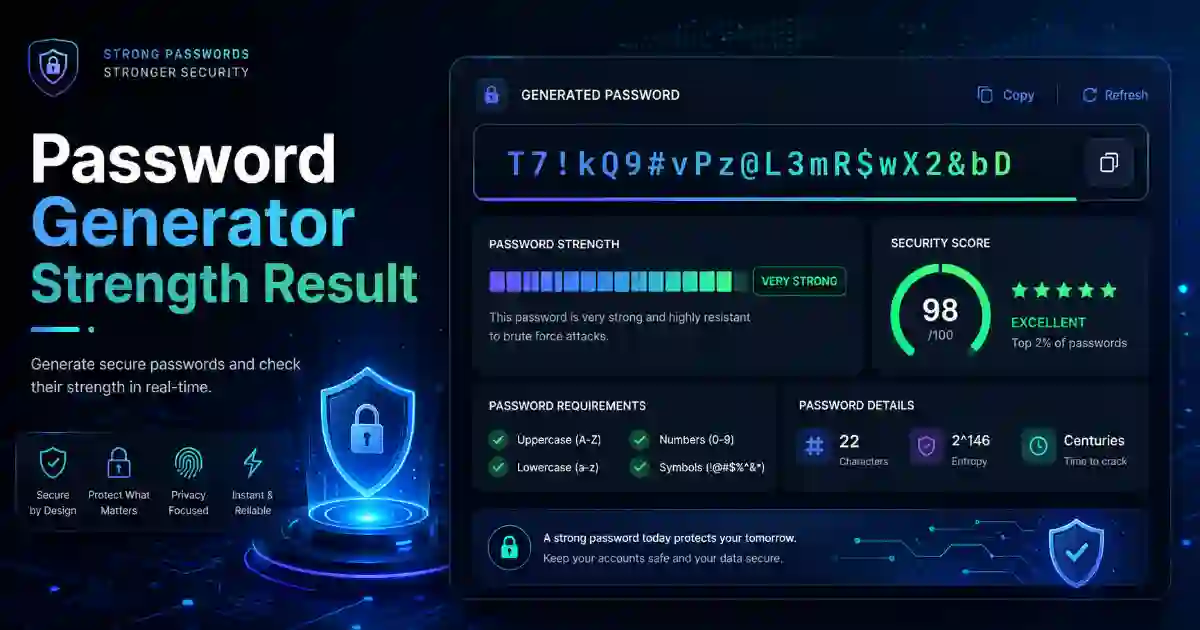
The strength estimate is based mainly on length, randomness, and the size of the character or word pool. It is an educational estimate, not a guarantee. A strong password can still be unsafe if you reuse it, share it, save it in an insecure place, or enter it on a phishing website.
Password
Best for password managers and accounts that accept long random strings.
Passphrase
Best when you may need to type or remember the result. More words usually means better security.
PIN
Best for devices or systems that only allow numbers. Longer PINs are safer than short PINs.
Privacy note
We do not store your input. This tool generates results in your browser and does not require login. For maximum safety, close the page after copying your password and save it only in a trusted password manager.
Password safety checklist
- Use a unique password for every account.
- Prefer long passwords or multi-word passphrases.
- Use a password manager instead of memorizing many passwords.
- Use passkeys where supported; otherwise enable MFA or 2-step verification.
- Change passwords after a known breach, suspected compromise, or accidental sharing.
Related cybersecurity tools
Helpful external resources
For broader security guidance, review trusted resources from NIST Digital Identity Guidelines, UK NCSC three random words guidance, UK NCSC passkeys guidance, CISA MFA guidance, and the OWASP Authentication Cheat Sheet.
FAQ
Is this password generator safe to use?
Yes. The generator runs in your browser and does not require login. Still, you should copy the result into a trusted password manager and avoid sharing it.
What is the best password length?
For most important accounts, use a long password. A 16 to 24 character random password is a strong practical choice when a website accepts it. Use longer results for high-value accounts.
Should I use a password or a passphrase?
Use a random password when you save it in a password manager. Use a passphrase when you need something easier to type or remember. More words make a passphrase stronger.
Should I change passwords regularly?
Change a password after a breach, suspected compromise, phishing incident, or accidental sharing. Forced routine changes can lead users to weaker patterns, so focus on unique strong passwords and MFA.
Are passkeys better than passwords?
Where available, passkeys are usually safer and easier because they are resistant to phishing and do not require users to remember a secret. Use this generator for services that still require passwords.
Privacy Note: We do not store your input.
Password Generator: Create Strong Passwords, Passphrases, and PINs Online
Password Generator tools help you create safer access without guessing weak passwords or reusing the same password on many websites. If you need a strong password for email, WordPress, hosting, banking, social media, Wi-Fi, cloud storage, or business software, this free tool can help you create one instantly.
This tool is simple, fast, mobile-friendly, and does not require access. You can generate a strong password, copy the result, and use it where needed.
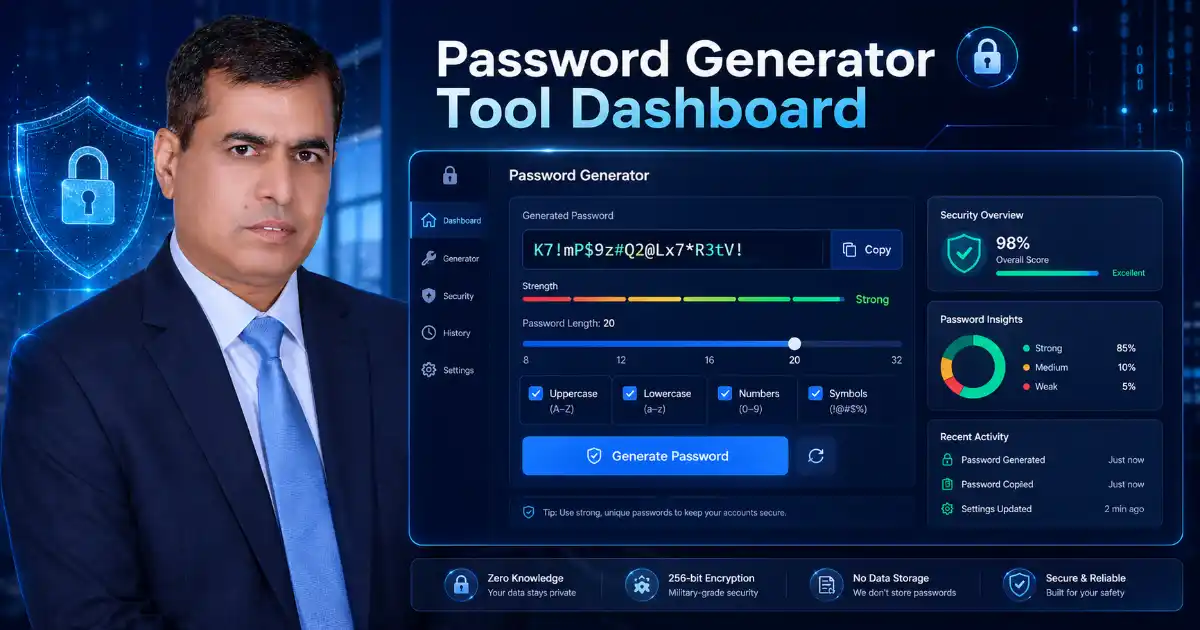
What is a Password Generator?
A Password Generator is a tool that creates random passwords using letters, numbers, symbols, or words. Instead of using a birthday, name, phone number, pet name, or simple word, you can generate a password that is harder to guess.
Many people still use weak passwords because they want something easy to remember. The problem is that easy passwords are also easy for attackers to test. A good Password Generator solves this problem by creating a random result that is safer than common passwords.
You can use this tool for:
- Email accounts
- WordPress admin accounts
- Hosting and cPanel access
- Online banking
- Social media accounts
- Cloud storage
- Business software
- Wi-Fi passwords
- Developer accounts
- SaaS dashboards
How to Use This Password Generator
Using this Password Generator is easy:
- Choose whether you want a password, passphrase, or PIN.
- Select the password length.
- Choose lowercase letters, uppercase letters, numbers, and symbols.
- Use the website-compatible option if a website does not accept symbols.
- Click the generate button.
- Check the strength result.
- Click Copy Result.
- Save the password in a trusted password manager.
- Enable MFA or passkeys where available.
This tool is built for real users. You do not need technical knowledge. You only choose your options, generate the result, copy it, and use it safely.
What the Password Result Means
The result is not only random text. It is a access credential that should be treated carefully.
A stronger password usually has:
- More characters
- Random letters
- Numbers
- Symbols
- No personal information
- No common words
- No reused pattern
For example, a short password like summer123 is weak because it uses a common word and predictable numbers. A longer random password is much safer because it is harder to guess.
The Password Generator result should be used for one account only. Do not reuse the same password on multiple websites. If one website is breached, reused passwords can put your other accounts at risk.
Why Strong Passwords Matter
Passwords protect important parts of your online life. Your email account may connect to your banking apps, social media, cloud storage, shopping accounts, and work tools. If someone gets access to your email, they may reset other accounts.
This is why strong passwords still matter.
A Password Generator helps you avoid common password mistakes. It creates a new password that is not based on your name, business, city, birthday, or favorite team. This makes the password harder to predict.
For important accounts, also use:
- MFA or 2-step verification
- Passkeys where available
- A password manager
- Unique passwords for every account
- Regular review of old weak passwords
Password vs Passphrase
A password is usually a random mix of characters. It can include letters, numbers, and symbols. This type of password is best when saved in a password manager.
A passphrase uses multiple random words. It can be easier to type and remember. Passphrases are useful for Wi-Fi passwords, device access, and accounts where you need something more human-friendly.
Use a random password when:
- You use a password manager
- The account is very important
- You do not need to type it often
- The website accepts long passwords and symbols
Use a passphrase when:
- You want something easier to type
- You need to remember it manually
- You are creating a Wi-Fi password
- You want a strong but readable access credential
Both can be strong when they are long, random, and unique.
Common Password Mistakes to Avoid
A Password Generator can help you create better passwords, but you should also avoid unsafe habits.
Avoid these mistakes:
- Using the same password on many websites
- Using your name or birthday
- Using your phone number
- Using your company name
- Using short passwords
- Saving passwords in plain text files
- Sending passwords through email or chat
- Ignoring MFA
- Using simple passwords like
admin123,welcome123, orpassword123 - Reusing old passwords after a breach warning
A strong password is only useful if you keep it private and use it correctly.
Best Practice for Personal Users
For personal accounts, start with the most important ones first:
- Banking apps
- Apple ID or Google account
- Social media
- Cloud storage
- Online shopping
- Mobile provider account
Use this Password Generator to create a unique password for each account. Then save each password in a trusted password manager. This way, you do not need to remember every password manually.
Best Practice for Business Users
Businesses should be more careful because one weak password can affect customers, payments, websites, staff accounts, and private files.
Business users should use strong generated passwords for:
- WordPress admin accounts
- Hosting panels
- Domain registrar accounts
- Business email
- Payment platforms
- CRM software
- Cloud storage
- Accounting tools
- Social media pages
- Team collaboration tools
For better protection, every staff member should have their own account. Avoid sharing one password between multiple people. When someone leaves the company, remove their access immediately.
Related Cybersecurity Tools
You may also find these tools helpful:
Password Strength Checker — Check whether a password is weak, medium, or strong before using it.
Hash Generator — Generate MD5, SHA-1, SHA-256, SHA-384, SHA-512, HMAC, and file checksum results.
Base64 Encoder Decoder — Encode and decode Base64 text online.
Security Awareness Policy Generator — Create editable cybersecurity policies for passwords, phishing, remote work, AI use, BYOD, incident reporting, and staff training.
Vendor Risk Quick Assessment Tool — Check supplier, SaaS, freelancer, agency, and service provider risk before sharing data or access.
Trusted External Resources
For more trusted cybersecurity guidance, review these resources:
NIST Digital Identity Guidelines
Frequently Asked Questions
What is a Password Generator?
A Password Generator is a tool that creates random passwords, passphrases, or PINs. It helps users avoid weak and predictable passwords.
Is this Password Generator free?
Yes. This Password Generator is free to use and does not require access.
Does this tool store my password?
No. We do not store your input or generated result.
How long should my password be?
For important accounts, use a long password. A password of 15 to 16 characters or more is a strong starting point. For sensitive accounts, use an even longer password or passphrase.
Should I use symbols in my password?
Symbols can help, but length and uniqueness are also important. If a website does not accept symbols, use a longer password with letters and numbers.
Is a passphrase better than a password?
A passphrase can be easier to type and remember. A random password is usually better when saved in a password manager. Both can be strong if they are long, random, and unique.
Can I use this tool for WordPress passwords?
Yes. This Password Generator is useful for WordPress admin accounts, hosting panels, database users, business email, and website management tools.
Should I reuse a strong password?
No. Every important account should have a unique password. Reusing passwords can put multiple accounts at risk if one website is breached.
What should I do after generating a password?
Copy the password, save it in a trusted password manager, and enable MFA or passkeys where available.